App Guide

App Guide

A comprehensive guide to every part of the app. If you're just getting started, head to Quick Start.

🧭Navigation
Free Navigation

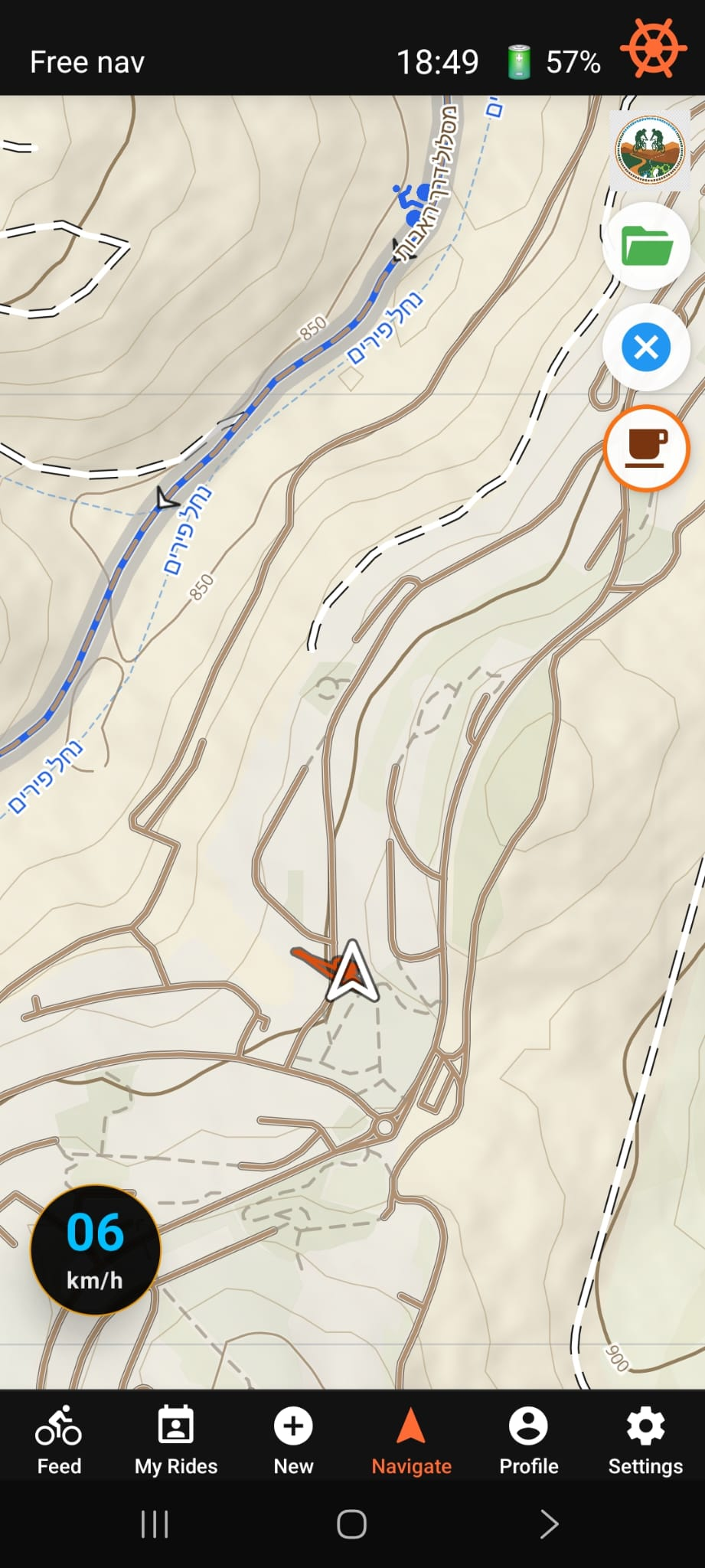
Free navigation screen

Free navigation screen

Open the Navigate tab. The map centers on your current position and follows you automatically as you ride.

Top bar:

  • Status label (left) — shows "Free nav"
  • Current time
  • Battery percentage
  • Map-mode icon (right) — tap to switch between North-Up and Heading-Up

Map modes:

  • Orange ship wheel = Heading-Up: map rotates with you, arrow always points forward.
  • Red compass = North-Up: map always faces north, arrow rotates with your heading.

The speed pill (bottom-left) shows your current speed in km/h. Pan or pinch to explore freely — auto-follow resumes after about 5 seconds once you start moving again.
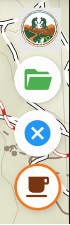
Navigation button panel
Button stack: map toggle · GPX folder · trail clear · coffee POIs.

Buttons (right side by default; configurable in Settings → App → Navigation):

  • Bishvil logo — current map is Bishvil MTB. Tap to switch to OpenStreetMap.
  • Green folder — load a GPX file from your device.
  • Blue X — clear your past trail (only appears when a trail exists).
  • Coffee cup — show cafes and bakeries with outdoor seating (premium; orange ring = active).

Past trail: an orange line traces everywhere you have ridden this session. It persists for up to 1 hour if the app is briefly closed and reopened.
GPX Navigation

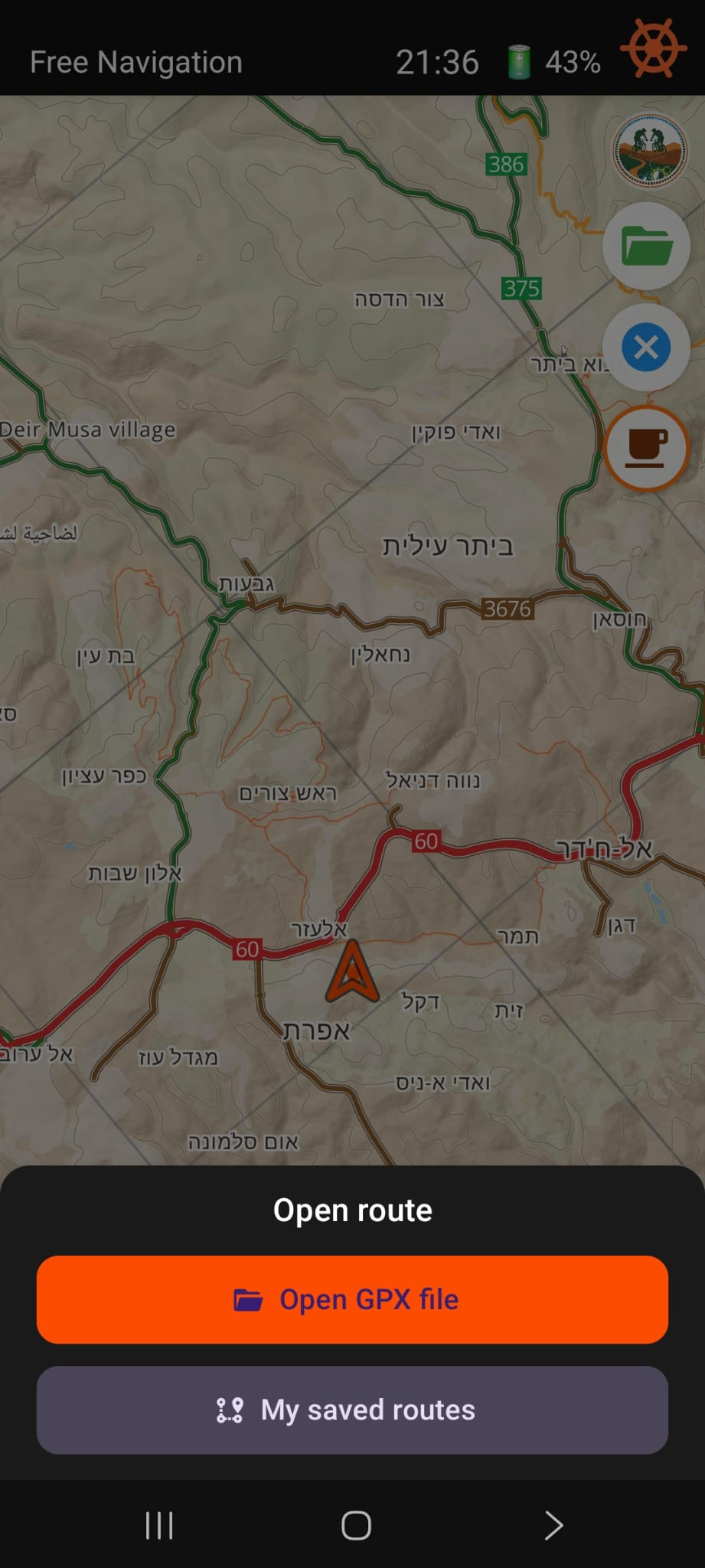
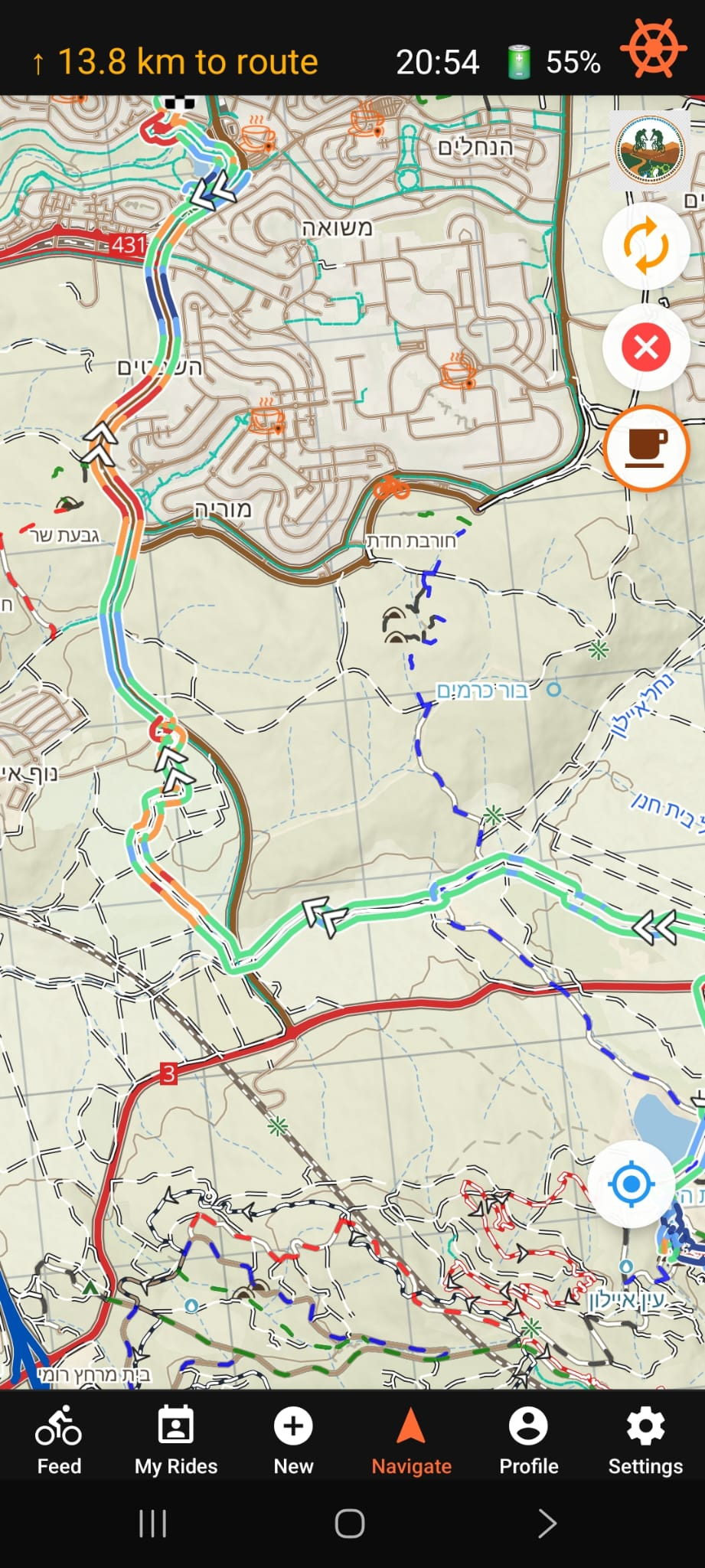
GPX navigation — slope colors and route metrics

GPX navigation with slope colors

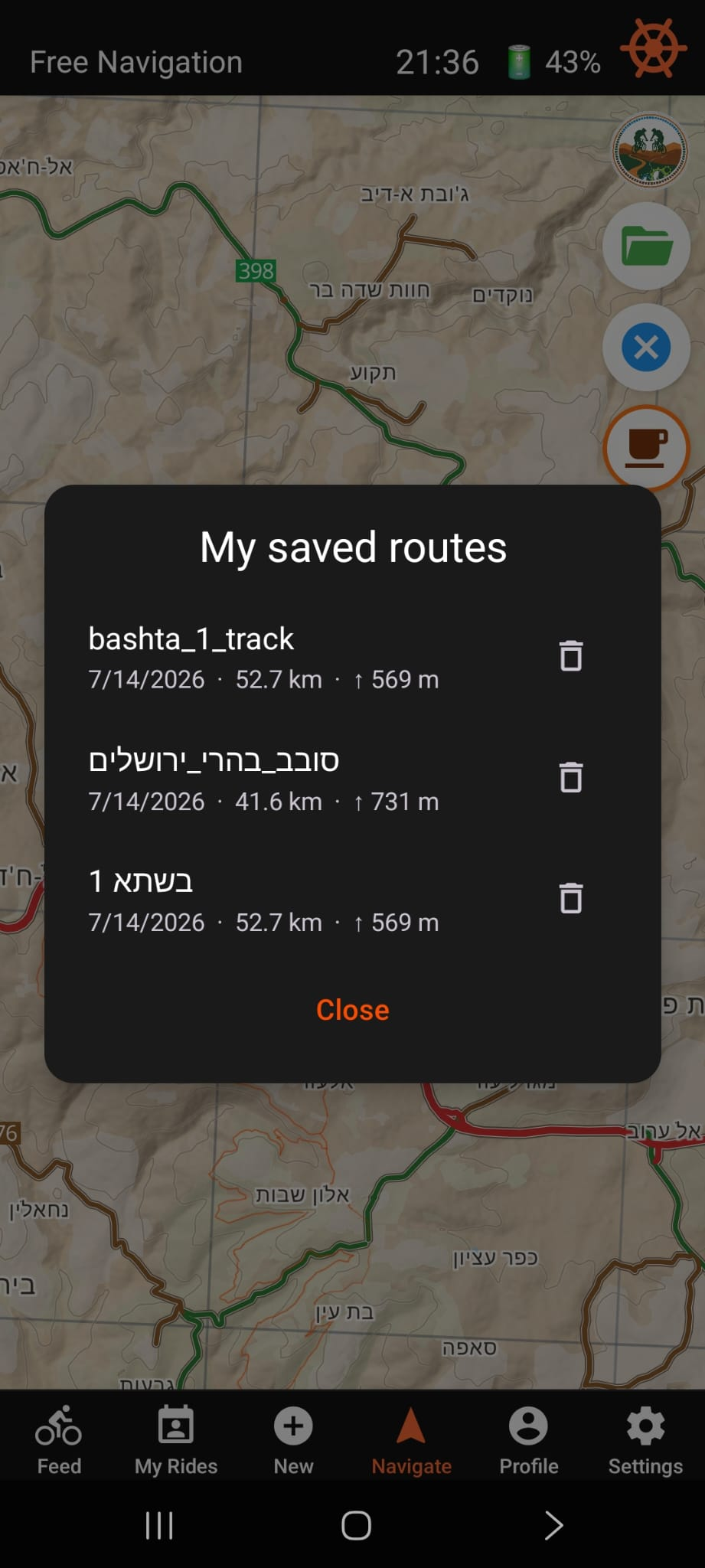
Tap the green folder button and select a GPX file. Files shared via WhatsApp or opened from Downloads load automatically.

Route colors by slope:

  • Dark blue — steep descent (> 6%)
  • Light blue — descent (3–6%)
  • Light green — flat (−3% to +3%)
  • Orange — ascent (3–6%)
  • Red — steep ascent (> 6%)

Direction arrows show which way to ride. Green dot = start, checkered flag = finish.

Top-left status:

  • Far from route — orange arrow + "X km to route" pointing toward the start.
  • On route — remaining distance · elevation gain · ETA (e.g. "6.2 km · +420 m · ~45 min").
  • ETA adapts in real time to your actual climbing and descending speed.

Off-route alerts:

  • Top-left turns orange showing distance back to route.
  • Double beep plays once, then a subtle tick every 30 seconds.
  • Mute Off Route button appears to silence the ticks.
  • Single chirp plays when you return to the route.

When GPX is loaded, the folder is replaced by a red X to clear the route. Your past trail continues recording regardless.

GPX files from Strava, Komoot, Garmin Connect, and most cycling apps are supported. Elevation data is detected automatically for slope coloring.

Reverse route:

An orange circular-arrows button appears on the side when a GPX route is loaded. Tap it to reverse the route direction in place — no need to reload the file.

  • Coordinates flipped end-to-start, swapping start and finish markers.
  • Elevation data reversed in sync — profile stays correct.
  • Off-route detection and turn state reset from your current position.
  • Slope-aware ETA counters reset to zero.
  • Past breadcrumb trail stays on the map unchanged.
👥Rides & Social
Feed

Tap the Feed tab to browse upcoming rides posted by other riders in Israel.

Each card shows:

  • Ride type, date and time, area, and organizer name
  • Skill level, pace, and participant count (X / Y spots)
  • "Following" badge — ride organized by someone you follow
  • "X you follow joined" — a followed rider has already joined

Tap a card to open full details and join:

  • Express ride — tap Join and you're in immediately.
  • Approval ride — tap Request; the organizer approves or declines.

Tap the filter icon to narrow by: ride type, skill level, time range (Today / 7 / 14 / 30 days), and distance from your location.

My Rides

Tap the My Rides tab to see all rides you are connected to.

  • Active tab — upcoming rides you are organising, have joined, or requested to join.
  • History tab — completed rides from the past 30 days.

Tap any ride to view details. If you are the organizer, manage participant requests (approve or reject) from the ride details screen. Updates appear in real time.

New Ride

Tap the + New button (center of the tab bar). A 5-step wizard guides you through:

  • 1. When — pick the date and start time.
  • 2. Where — tap anywhere on the map to set the meeting point.
  • 3. Details — choose ride type, write a description, optionally attach a GPX route.
  • 4. Group — skill level, pace, max participants (2–6), join mode (Express or Approval), gender preference.
  • 5. Review — confirm everything, then publish.

Once published, the ride appears in the Feed for riders whose preferences match.

Attaching a GPX route lets participants preview the trail on the map before joining.
👤Profile & Account
Your Profile

Tap the Profile tab to view and edit your account.

Editable fields:

  • Display name, bio, and phone number.
  • Ride types (multi-select): Trail, Enduro, Gravel, Road.
  • Skill level, pace, birth year, and gender.

Tap Save to apply changes. These preferences affect which rides appear in your Feed and which riders see your rides.

The Premium Status card shows your plan tier and trial expiration date. All new users receive a 30-day premium trial automatically.

Tap Sign Out at the bottom to log out.

⚙️Settings & Map
App
  • Theme — System / Light / Dark.
  • Language — Hebrew / English. Switches the full app UI immediately.

Screen Mode (Navigation tab only):

  • Always On — screen never dims during navigation.
  • Balanced — dims after 10 s idle while moving (30 s while stationary). Tap anywhere to wake.
  • Dim brightness — slider to set dimmed level (30–80%).
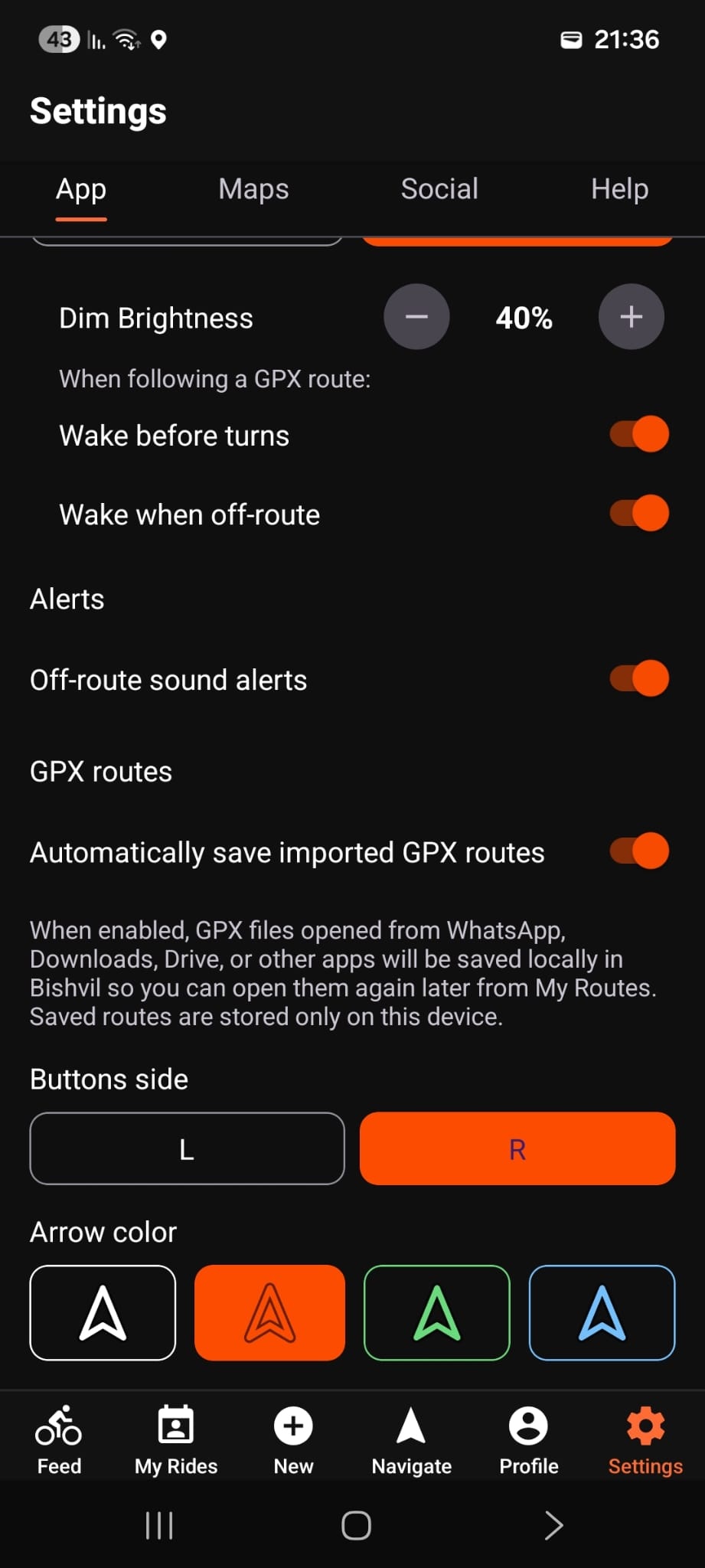
  • Wake before turns (GPX only) — screen wakes as you approach a turn.
  • Wake when off-route (GPX only) — screen wakes when you leave the route.

Off-route alerts — toggle sound alerts on/off for GPX navigation. Double beep on leaving route, chirp on return.

Navigation:

  • Buttons side — Left / Right. Moves all overlay buttons (map toggle, folder, trail clear, coffee cup) to the chosen side. The mode toggle (compass/ship wheel) is always pinned to the right edge of the top bar regardless of this setting.
Maps

Download offline map packs so navigation works without any mobile signal.

Full Israel Map (premium, ~1.3 GB): downloads the complete Bishvil MTB map to your device. Once installed, all features — slope colors, coffee POIs, offline rendering — work with no internet.

All beta testers receive a 30-day premium trial, so the Full Israel Map is available to everyone in the beta.

Map data versions shows your installed MTB tile version and POI version with download date.

Social

Shows every user you follow with their ride stats (organised and joined).

  • Tap a name to open their profile.
  • Tap Unfollow to stop following directly from this list.

You receive a Feed notification when a user you follow creates a new ride.

Help

Contact Support opens a pre-filled email with your app version, device model, and navigation mode included — just describe the issue and send.

The app version number is displayed at the bottom of this tab.